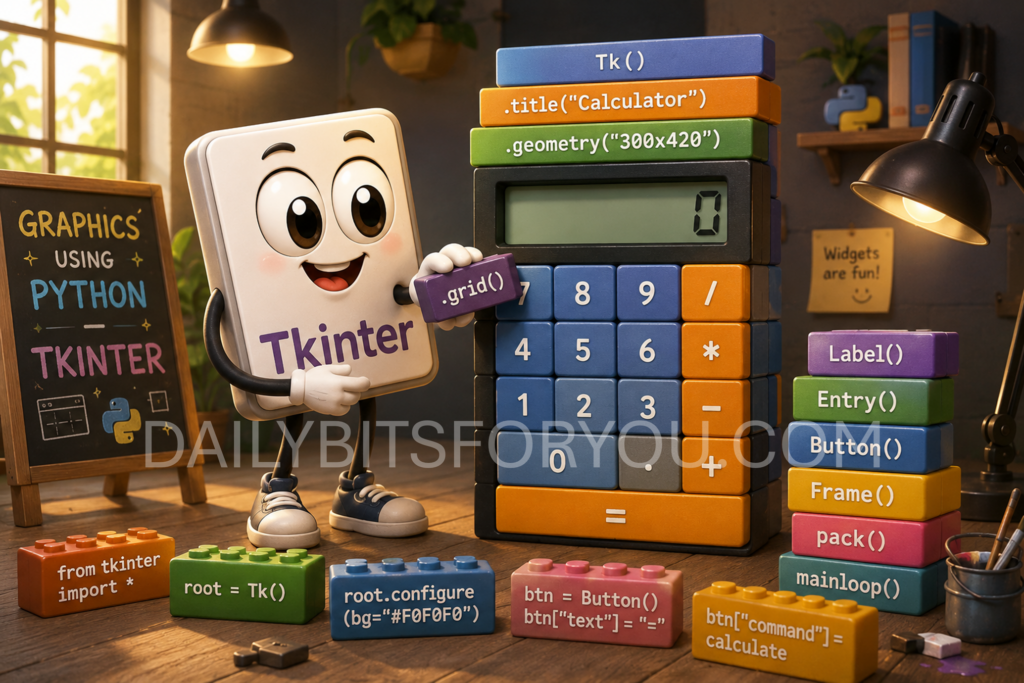
🐍 TKINTER (GRAPHICS WITH PYTHON) 🐍
Have you ever wondered how desktop applications with buttons, text boxes, and menus are created? 🪟🔁🔼
Tkinter is the answer for Python beginners.
Tkinter is Python’s built-in library for creating Graphical User Interfaces (GUIs), which means you can build programs that users interact with by clicking buttons and typing into windows instead of using only the keyboard.
Tkinter is included with most Python installations, so you usually do not need to install anything extra. It is easy to learn and is perfect for beginners who want to move beyond text-based programs.
With just a few lines of code, you can create a window, add labels, buttons, text boxes, checkboxes, and many other useful widgets.
A simple Tkinter program usually follows these steps:
🐝 Import the Tkinter library.
🐝 Create the main application window.
🐝 Add widgets such as labels and buttons.
🐝 Arrange the widgets using layout managers.
🐝 Start the application using the main event loop.
Here is a tiny example,
import tkinter as tk

window = tk.Tk()
window.title("My First Window")

label = tk.Label(window, text="Hello, World!")
label.pack()

window.mainloop()
When you run this program, a small window appears with the message “Hello, World!”.
Tkinter is an excellent starting point for anyone interested in desktop application development. As you learn more, you can create calculators, to-do lists, quiz applications, games, text editors, and even simple business tools.
Its beginner-friendly design makes it one of the best ways to explore GUI programming while strengthening your Python skills.
Try using SPYDER IDE if you have ANACONDA PACKAGE or you can use https://onecompiler.com/tkinter to run this program!!
🐍 CREATE A CALCULATOR USING PYTHON WITH TKINTER 🐍
The comments explain what each part does and why it is needed, making it easier for new Python learners to follow.
# Import the Tkinter library and give it the short name "tk"
import tkinter as tk

# This function runs whenever a number or operator button is clicked.
def button_click(value):

    # Get the current text from the display box.
    current = display.get()

    # Clear the display.
    display.delete(0, tk.END)

    # Add the newly clicked button to the end of the current text.
    display.insert(tk.END, current + str(value))


# This function clears everything from the display.
def clear_display():

    # Delete all characters from the Entry widget.
    display.delete(0, tk.END)

# This function calculates the answer.
def calculate():

    # "try" allows the program to test code that might cause an error.
    try:

        # Get the mathematical expression from the display.
        expression = display.get()

        # Evaluate the expression.
        # Example: "5+3" becomes 8
        result = eval(expression)

        # Remove the old expression.
        display.delete(0, tk.END)

        # Show the result.
        display.insert(tk.END, result)

    # This error occurs if the user tries to divide by zero.
    except ZeroDivisionError:

        display.delete(0, tk.END)
        display.insert(tk.END, "Cannot divide by 0")

    # Catch any other unexpected errors.
    except:

        display.delete(0, tk.END)
        display.insert(tk.END, "Error")

# Create the main application window.
root = tk.Tk()

# Give the window a title.
root.title("Cute Calculator")

# Set the size of the window.
root.geometry("340x470")

# Prevent the user from resizing the window.
root.resizable(False, False)

# Set the background colour.
root.configure(bg="#ECECEC")

# Entry is the text box where numbers and answers appear.
display = tk.Entry(

    root,                   # Place it inside the main window.
    font=("Arial", 24),     # Large font for easy reading.
    justify="right",        # Align text to the right like a real calculator.
    bd=8,                   # Thickness of the border.
    relief="ridge"          # Border style.
)

# Position the display using the grid layout.
display.grid(
    row=0,
    column=0,
    columnspan=4,           # Display stretches across all four columns.
    padx=10,
    pady=15,
    sticky="nsew"
)

# Each tuple contains:
# (Button Text, Row Number, Column Number)
buttons = [

    ("7",1,0), ("8",1,1), ("9",1,2), ("/",1,3),
    ("4",2,0), ("5",2,1), ("6",2,2), ("*",2,3),
    ("1",3,0), ("2",3,1), ("3",3,2), ("-",3,3),
    ("C",4,0), ("0",4,1), ("=",4,2), ("+",4,3)

]

# Loop through every button in the list.
for (text, row, col) in buttons:

    # Decide which function each button should perform.
    if text == "=":
        command = calculate

    elif text == "C":
        command = clear_display

    else:
        # For numbers and operators,
        # send the button's value to button_click().
        command = lambda value=text: button_click(value)

    # Create the button.
    button = tk.Button(

        root,
        text=text,
        command=command,
        font=("Arial", 18, "bold"),
        width=5,
        height=2,
        bg="#FFFFFF",
        activebackground="#D8E8FF",
        relief="raised",
        bd=3
    )

    # Place the button in the correct row and column.
    button.grid(
        row=row,
        column=col,
        padx=5,
        pady=5,
        sticky="nsew"
    )

# Give every row equal space.
for i in range(5):
    root.grid_rowconfigure(i, weight=1)

# Give every column equal space.
for i in range(4):
    root.grid_columnconfigure(i, weight=1)

# This keeps the window open and waits for the user
# to click buttons or interact with the calculator.
root.mainloop()